





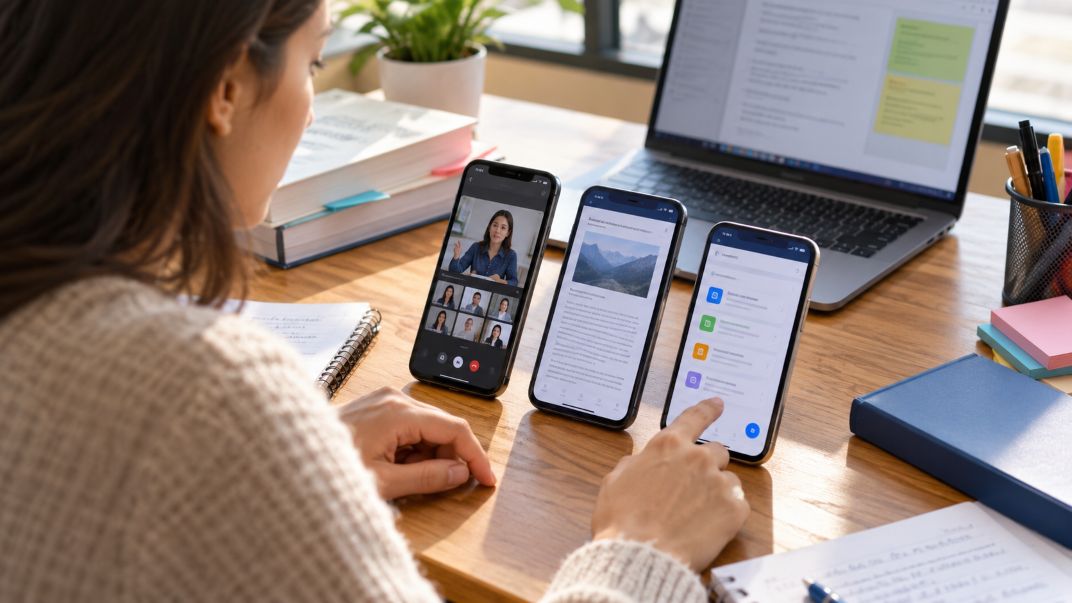
Smartphones have become useful tools for attending online classes, reading educational materials, and completing school assignments. However, learning through a small screen presents several challenges. Students may struggle with limited storage, short battery life, slow internet connections, and applications that require newer operating systems. Choosing the right smartphone can help reduce these problems and create a more comfortable learning experience.
Comparing devices before buying helps students identify which features matter most for their academic activities. Online resources that compares smartphones (Compare Celular comparador) can serve as a starting point when shortlisting smartphones based on their technical specifications. Rather than focusing on brand popularity or camera performance, students should examine how each device supports video lessons, document reading, communication, and everyday schoolwork.
A Step-by-Step Guide to Comparing Smartphones for Mobile Learning
A suitable learning device should match the student’s academic requirements, budget, and internet access. The following steps provide a practical approach to evaluating smartphones for educational use.
Step 1: Identify Learning Platform Requirements
Start by listing the applications required for classes. Common examples include Google Classroom, Microsoft Teams, Zoom, and Google Meet. These platforms have different operating system requirements, which can affect compatibility with older smartphones.
For example, Zoom lists minimum operating system requirements for its mobile application. Microsoft also maintains supported Android and iOS versions for Teams. Students should consult current application requirements before purchasing a device, especially when considering refurbished models.
Check whether the smartphone supports document editing, assignment submissions, video meetings, and file sharing. These activities may require additional applications beyond the main learning platform.
Step 2: Compare Screen Size and Readability
Reading textbooks, reviewing presentation slides, and watching educational videos can become uncomfortable on a small display. Screen size, resolution, brightness, and text clarity deserve attention.
A larger display provides more viewing space, particularly for documents with tables or diagrams. However, larger phones may be heavier and less convenient to carry.
Consider these display characteristics:
- Screen size that supports comfortable reading.
- Resolution that keeps text and diagrams clear.
- Brightness suitable for different lighting conditions.
- Adjustable text size and display settings.
Google explains that Android includes options for changing font size, display size, and contrast. These settings can improve readability, although their availability and behavior vary across applications.
Step 3: Evaluate Battery Life for Long Classes
Video meetings, screen brightness, and wireless connections consume battery power. A phone that performs well during casual messaging may need more frequent charging during extended lessons.
Compare battery capacity alongside independent battery tests. A higher milliampere-hour rating does not automatically guarantee longer usage because display technology, processor efficiency, and software also influence power consumption.
Students who attend several classes daily should prioritize reliable battery performance. Charging speed and access to a suitable charger are also worth considering.
Step 4: Check Storage and Processing Performance
Learning applications, downloaded textbooks, recorded lectures, and assignment files occupy storage space. Limited capacity can make it difficult to maintain educational materials alongside everyday applications.
For general schoolwork, 128GB of internal storage is a reasonable starting point to compare, although individual requirements vary. Students who regularly save large videos may need additional capacity or cloud storage.
Memory and processor performance also matter. Switching between a video meeting, browser, and document editor can place additional demands on the device.
Step 5: Examine Connectivity and Internet Support
Reliable connectivity is essential for live classes. Compare Wi-Fi capabilities, supported mobile networks, and compatibility with local service providers.
Zoom publishes recommended bandwidth figures for different video resolutions. Its guidance shows that higher-quality video requires greater network capacity. Students using mobile data should consider both connection stability and available data allowances.
Offline learning features can also help. Google Classroom supports certain offline activities on Android, including viewing previously downloaded assignment attachments. These functions are useful when internet access is interrupted.
What Changes When Budget Smartphones Are Compared With Midrange Models?
Budget smartphones can handle basic educational activities, including messaging, document viewing, and some video meetings. Their limitations may become more noticeable when students open several applications or work with larger files.
Midrange models often provide more memory, improved displays, and stronger processing capabilities. However, these advantages depend on the specific models being compared.
Students should avoid assuming that a higher price guarantees better learning performance. A lower-priced phone with sufficient storage, reliable connectivity, and current software support may meet their needs.
Why Accessibility and Application Compatibility Still Matter
Accessibility features can make mobile learning easier for students with different visual, hearing, and physical needs.
Google documents Android accessibility tools such as TalkBack, magnification, and color correction. Apple’s accessibility features also include VoiceOver and display adjustments.
Before choosing a smartphone, students should test these features with their preferred learning applications. They should also check whether school websites function properly through mobile browsers.
Some assignments may require desktop-only software or complex formatting. Students should confirm whether their coursework can realistically be completed on a phone. Beyond technical compatibility, they should also consider the reliability and credibility of the educational services they use. Understanding the connection between digital learning platforms and student trust can help students recognize why transparent communication, dependable technology, and responsible online practices matter in education.
Choosing a Smartphone That Supports Long-Term Learning
The best smartphone for online education is one that meets actual learning requirements without creating unnecessary expenses. Screen readability, battery performance, storage, connectivity, accessibility, and software compatibility should guide the decision.
As educational platforms continue developing, operating system updates and application support will remain important. Comparing these practical features can help students choose devices that remain useful throughout their studies.
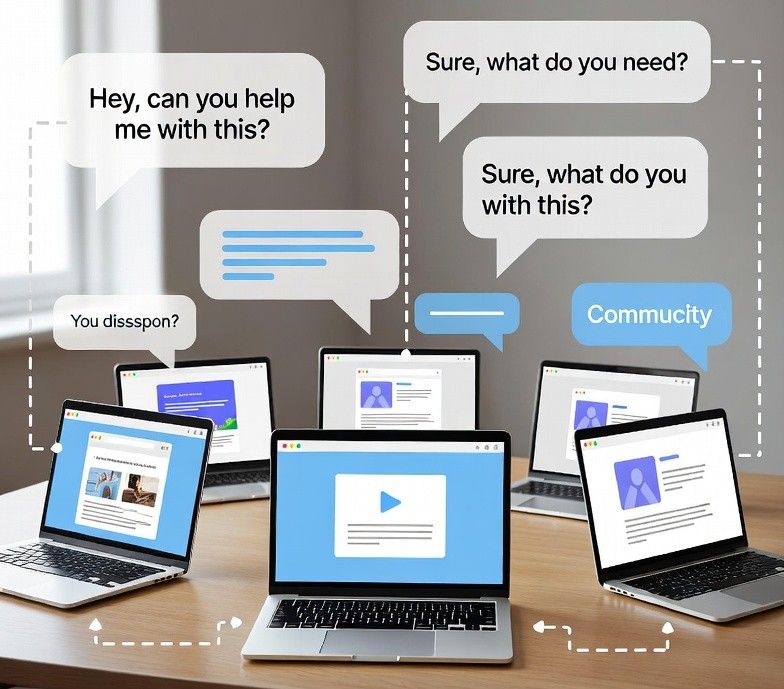
 That is where an SAP preferred partner can make a real difference. Working with a partner that understands both enterprise software and the unique demands of education helps EdTech platforms evolve beyond basic features. Enterprise resource planning and analytics become more than buzzwords. They become practical tools to simplify data flow, empower instructors, and enhance student experiences.
 Education technology, or EdTech, has transformed the way students learn and teachers teach. From virtual classrooms to mobile learning apps, technology now supports nearly every part of education. Students can access lessons anytime, collaborate with classmates online, and explore interactive tools to learn more. For teachers and schools, EdTech helps track progress, personalize lessons, and reach more learners.